Stefan Đokić
Claude Code for .NET works best when it has clear project context and a task you can verify. This guide walks through setup, a CLAUDE.md file, reusable skills and agents for real C# projects. Start with a small change, inspect the diff and run your tests before expanding the task.
A quick word from me
This issue isn't sponsored. Instead, let me point you to something I run every single day: my AI for .NET Developers Community - for .NET developers who want to actually use AI on real code. 50+ ready-to-run skills and agents for .NET (the security auditor and EF Core optimizer from this issue included), a new one added every week, and the room to figure it all out together.
Join the community - 7 days free →Want to reach thousands of .NET developers like this?
Sponsor TheCodeMan →Keywords: Claude for .NET, Claude Code, CLAUDE.md, C# AI assistant, agent skills, .NET AI workflow
The Problem: A Smart Assistant With Amnesia
The first time I used an AI assistant on a real .NET project, it felt impressive for about ten minutes.
Then reality set in. I'd explain that we use the Result pattern, not exceptions, for control flow. Two prompts later it handed me a method that threw on every validation failure. I'd say "we're on .NET 10, minimal APIs, no MediatR." Next answer: a controller with a MediatR handler. Every session started from zero. I was the memory.
That is the difference between a chat window and an assistant. A chat window forgets. An assistant remembers your project, your conventions, and your codebase - and works on the real files, not snippets you paste in.
This issue is the getting-started guide I wish someone had handed me: install Claude, give it memory with a CLAUDE.md, and turn it into a repeatable workflow with skills and agents. By the end you'll have it running on your own C# repo.
Step 1: Install Claude Code (or Use the Desktop App)
There are two ways in, and you don't have to pick just one.
Claude Code is the terminal tool. It lives in your repo, reads your files, runs commands, and edits code in place. If you live in a terminal, this is home. Install it with npm and start it inside your project:
npm install -g @anthropic-ai/claude-code # then, from your solution folder:cd C:\src\MyDotnetAppclaude
The first run walks you through signing in. After that, you're in an interactive session sitting right on top of your code.
The Claude desktop app is the other door. Same model, friendlier surface, and it has a mode built for exactly this kind of work on your files. If you'd rather not live in a terminal, start here - everything below about CLAUDE.md, skills, and agents works the same way.
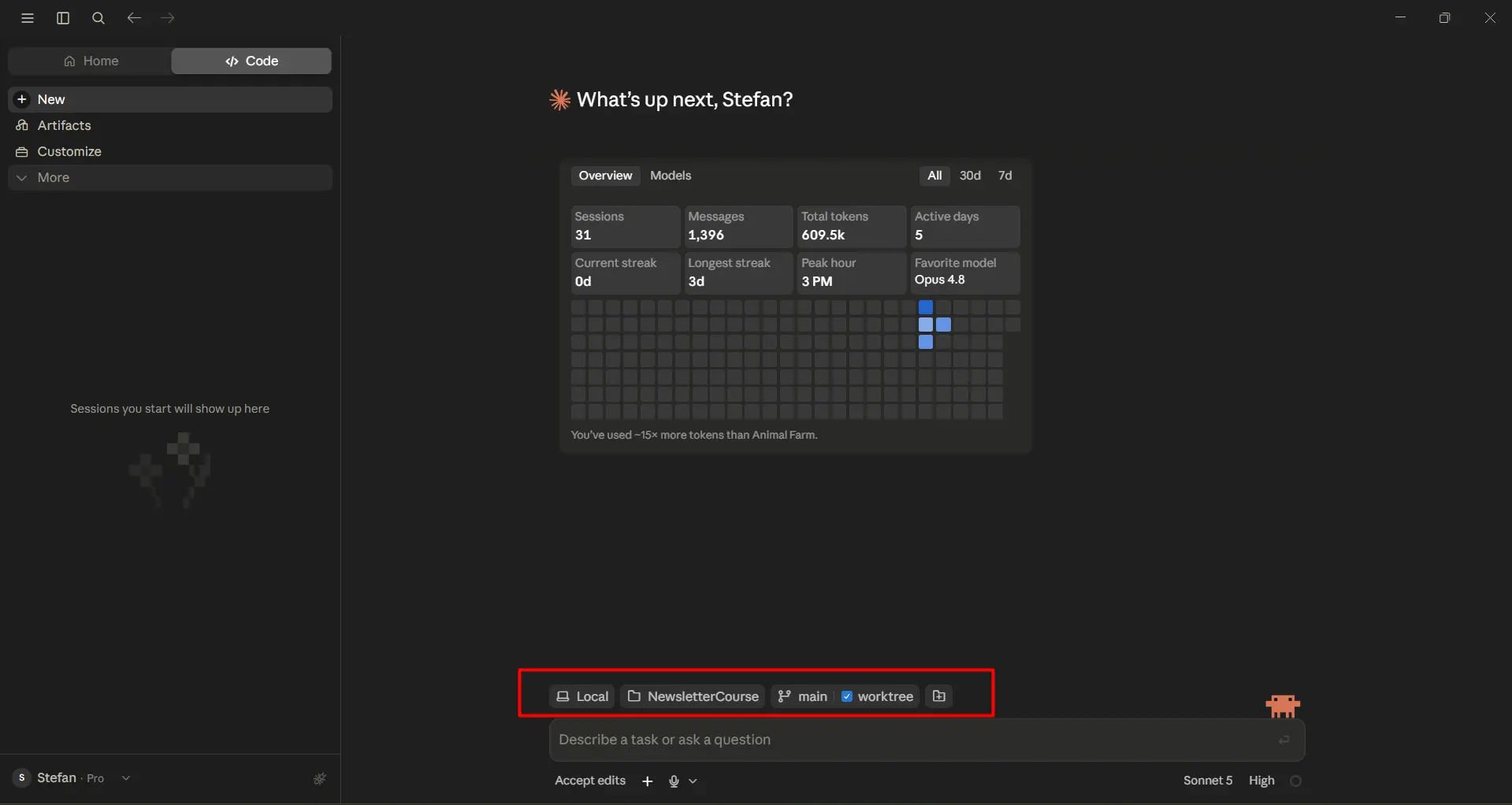
My advice: open it inside a real repo from minute one. Claude is only as good as the context it can see, and an empty folder gives it nothing.
Step 2: CLAUDE.md - The Most Important File You'll Add
Here's the single change that took Claude from "neat toy" to "I use this every day": a CLAUDE.md file in the root of my repo.
CLAUDE.md is a plain markdown file that Claude reads at the start of every session. Think of it as the onboarding doc you'd give a new senior engineer on day one - except this one gets read every single time, never skimmed, never forgotten. Build commands, conventions, the stuff that's "obvious to the team" but invisible in the code.
You don't have to write it by hand. Inside a session, run:
/init
Claude scans the project and drafts a CLAUDE.md for you - detected framework, project layout, build and test commands. Then you edit it down to what actually matters.
Here's a trimmed version of what I keep in a .NET repo:
# CLAUDE.md ## Project- .NET 10, ASP.NET Core Minimal APIs. No MediatR, no controllers.- Persistence: EF Core 9 + PostgreSQL. Migrations in `src/Infrastructure/Migrations`.- Vertical slice layout: one folder per feature under `src/Features`. ## Conventions I care about- Use the Result pattern for expected failures. Exceptions are for bugs only.- Public API returns ProblemDetails on errors. Never leak stack traces.- All EF queries that only read data use `.AsNoTracking()`.- Thread `CancellationToken` through every async endpoint and handler. ## Commands- Build: `dotnet build`- Test: `dotnet test`- Run: `dotnet run --project src/Api` ## Rules- Never edit files under `Migrations/` by hand.- When you add an endpoint, add its integration test in the same slice.
Notice what this is: not clever prompting, just facts. The more specific and concise it is, the more consistently Claude follows it. Vague aspirations ("write clean code") get ignored. Concrete rules (".AsNoTracking() on read queries") get applied.
A few things I learned the hard way:
- Keep it short. This file is read every session and eats context. Facts and "always do X" rules only - not a wiki.
- Two levels exist. A project
CLAUDE.md(commit it, your whole team gets it) and a personal one at~/.claude/CLAUDE.mdthat applies across every project. I keep personal preferences - "ask before executing," "show a brief plan" - in the user-level file. - It's a living file. When Claude does something the wrong way, I don't just correct it in chat. I add one line to
CLAUDE.mdso it never happens again.
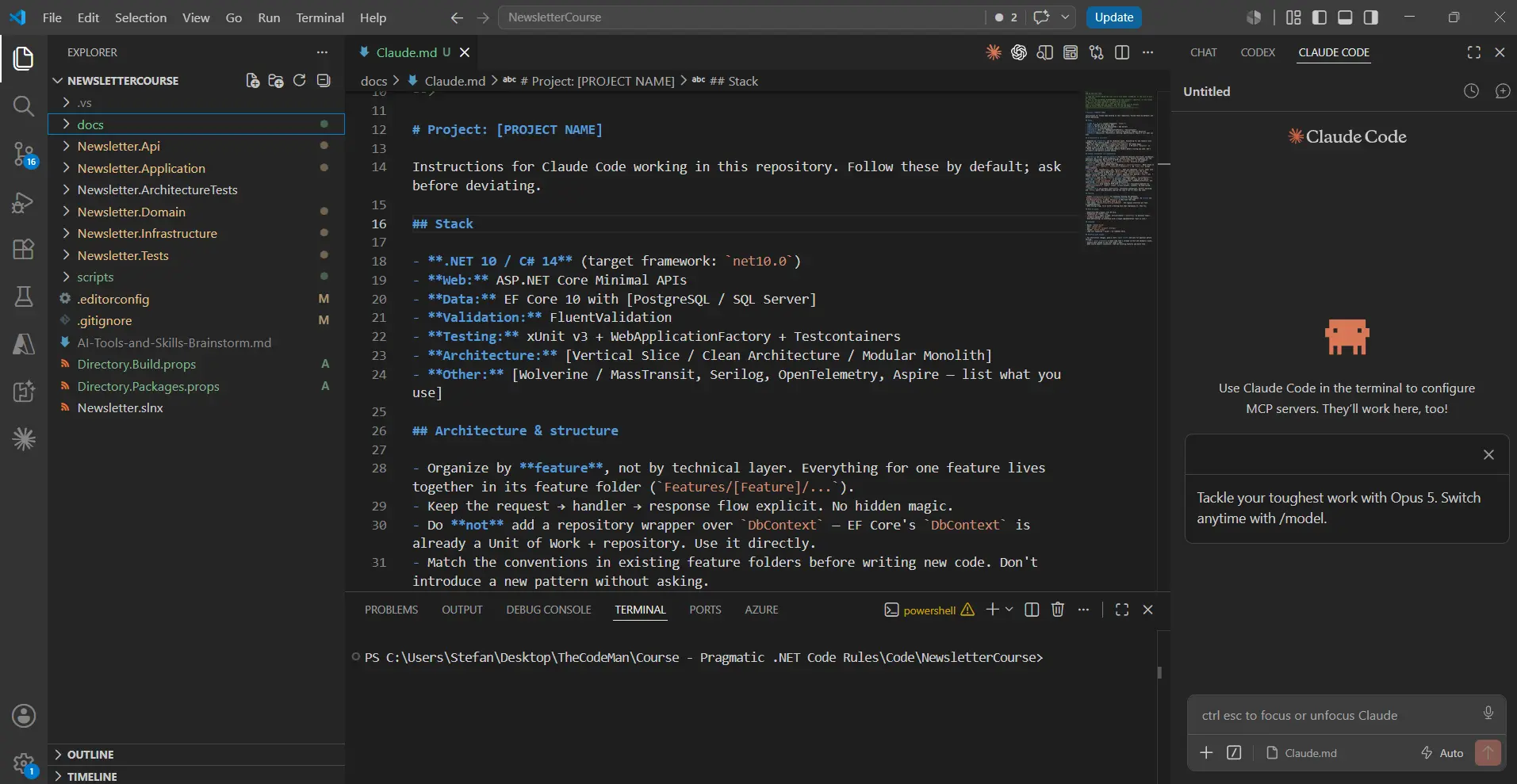
That last point is the whole game. Every correction you bake into CLAUDE.md is a mistake you never have to catch twice.
Step 3: Understand the File Structure
Once you go past a single CLAUDE.md, Claude has a small, predictable set of folders it looks for. You don't need all of them on day one, but knowing the map saves you a lot of guessing:
your-dotnet-repo/├─ CLAUDE.md # project memory, read every session (commit this)├─ .claude/│ ├─ skills/ # reusable, auto-triggered instructions│ │ └─ ef-core-query-optimizer/│ │ └─ SKILL.md│ └─ agents/ # specialized sub-agents you invoke by task│ └─ aspnetcore-security-auditor.md└─ src/ ... # your actual code
And at the user level, applying to every project you open:
~/.claude/├─ CLAUDE.md # personal rules across all projects├─ skills/ # your personal skills└─ agents/ # your personal agents
The pattern is consistent: project-level things live in .claude/ inside the repo and are shared with your team through git; user-level things live in ~/.claude/ and follow you everywhere. Project skills even cascade - Claude picks up skills defined at the repo root even when you start it in a subfolder.
That's the entire mental model. Memory in CLAUDE.md, reusable procedures in skills/, specialists in agents/.
Step 4: Skills - Turn Repeated Prompts Into Tools
This is where Claude stops being a chat window and becomes a workflow.
A skill is just a folder with a SKILL.md file inside. That file holds two things: a description of when the skill applies, and the instructions for what to do when it does. You drop the folder into .claude/skills/, and Claude loads it automatically - the folder name even becomes a command you can type.
Here's a minimal one for a .NET habit I never want to explain twice:
---name: efcore-readonly-checkdescription: > Use when reviewing or writing EF Core queries in C#. Flags read-only queries that are missing AsNoTracking, and N+1 access patterns.--- # EF Core read-only check When you see a LINQ-to-Entities query in this repo: 1. If the query only reads data and never mutates it, it MUST use `.AsNoTracking()`. Flag any that don't and fix them.2. Look for loops that trigger a query per iteration (N+1). Suggest a single projected query with `.Select(...)` instead.3. Report findings as: file, line, problem, fix.
Now, instead of re-typing "check my EF queries for tracking and N+1" for the hundredth time, I just say:
Review the EF Core queries in src/Features/Orders.
The description tells Claude the skill is relevant, it loads the instructions, and it applies the same checklist every time - on a file, a folder, or the whole solution. No build step, no dependencies. It's a markdown file.
That reliability is the point. A prompt you type from memory is different every time. A skill is the same senior-engineer checklist, run identically, forever.
Step 5: Agents - Specialists for Bigger Jobs
Where a skill is a focused procedure, an agent is a specialist you hand a whole job to. An agent is a single .md file in .claude/agents/, and it explores the codebase on its own rather than working on one file you named.
The difference in practice: I ask a skill to "optimize the queries in this folder." I ask an agent to "run a security audit on this API" - and it maps the startup, the endpoints, the auth setup, checks them against the OWASP Top 10 plus .NET-specific risks, and comes back with a ranked report down to file and line.
That's the split worth remembering:
- Skill = a repeatable procedure, triggered automatically when your request matches. Great for "do this specific check/transform."
- Agent = a specialist that investigates broadly and reports back. Great for "audit / review / analyze this whole thing."
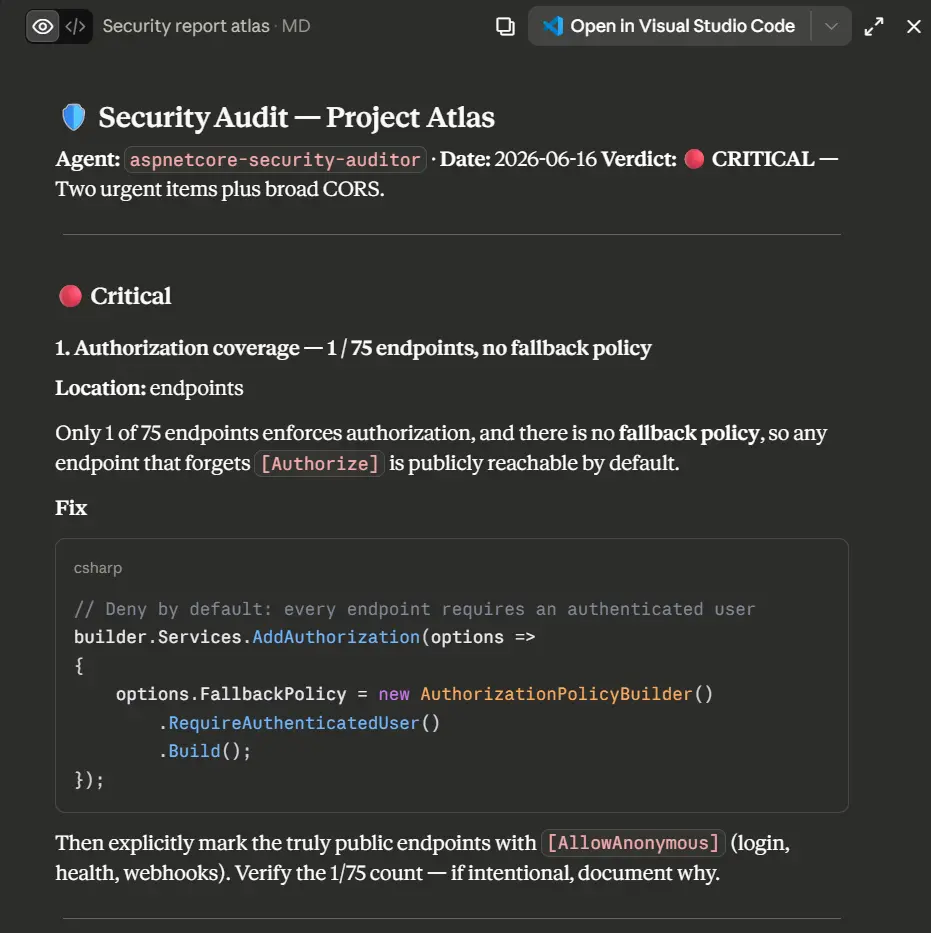
That exact security auditor is one of the agents I keep in my AI for .NET Developers Community. If you'd rather run it than build it, you can grab it and point it at your own API today - it's part of the 7-day free trial.
You can start with zero of these and add them as patterns repeat. The first time you catch yourself typing the same review prompt for the third time - that's your first skill.
How I Actually Use This on .NET Work
To make it concrete, here's the loop I run, not the theory:
- Open the repo with Claude (desktop app or
claudein the terminal). It readsCLAUDE.mdand already knows we're on .NET 10 minimal APIs with the Result pattern. - Build a feature by describing it. Because the conventions live in memory, the output matches house style instead of generic tutorial code.
- Let skills guard quality. When I touch data access, the EF Core skill kicks in without me asking. When I write auth, the security habits apply.
- Send in an agent for the big passes. Before a release, I point the security auditor at the whole API and read its ranked report like a second set of senior eyes.
I've packaged the whole set of skills and agents I use - architecture, EF Core, performance, security, testing, DevOps - into AI for .NET Developers Community, and I add new ones every week. If you want a running start instead of building each one from scratch, that's the shortcut. But everything in this issue works with files you write yourself - that's the point of showing you the structure.
FAQ
Do I need to be a paying Claude user to try this?
You need a Claude account to run Claude Code or the desktop app. Beyond that, CLAUDE.md, skills, and agents are just files you create - there's no separate purchase for the file structure itself. Start with a free CLAUDE.md in one repo and go from there.
Where exactly do I put CLAUDE.md in a .NET solution?
At the root of the repo, next to your .sln file - the same place your .gitignore and README live. Commit it so your whole team shares the same context. Personal preferences go in ~/.claude/CLAUDE.md instead, which applies to every project you open.
What's the difference between a skill and an agent?
A skill is a focused, reusable procedure that Claude triggers automatically when your request matches its description - think "check EF Core queries." An agent is a specialist you hand a broad job to, and it explores the codebase on its own before reporting back - think "audit this API." Skills are for specific checks; agents are for investigations.
Will Claude edit my files without asking?
You stay in control. You can tell it to show a plan before acting, and I keep exactly that rule in my user-level CLAUDE.md ("ask before executing, show a brief plan"). Review its proposed changes the way you'd review a pull request.
Wrapping Up
Getting value out of Claude as a .NET developer isn't about clever prompts. It's about giving it the three things a good teammate needs: memory, procedures, and specialists.
Memory is CLAUDE.md - the file that stops you from re-explaining your stack every session. Procedures are skills - the repeated checks you turn into tools so they run identically every time. Specialists are agents - the deep passes you hand off whole.
Start today with the smallest possible step: create a CLAUDE.md in one repo, put five real rules in it, and open a session. That one file will change how the whole thing feels. Add your first skill the third time you retype the same prompt.
If you want to skip ahead and see 50+ of these built for real .NET work, they're inside AI for .NET Developers Community. And if you just want a room full of .NET developers figuring this out together, that's what the community is for.
That's all from me today.